

The Sense App provides several ways to edit your music library. In this article, we will focus on how to edit the details for artists saved in your library.
You can read separately about how to change your album covers, edit album metadata, and edit track metadata here: Editing Albums
1. Navigate to the Albums section in Sense. You can do this by selecting the Music tab on the Sense dashboard, which you can access through my.innuos.com or through the Sense app.
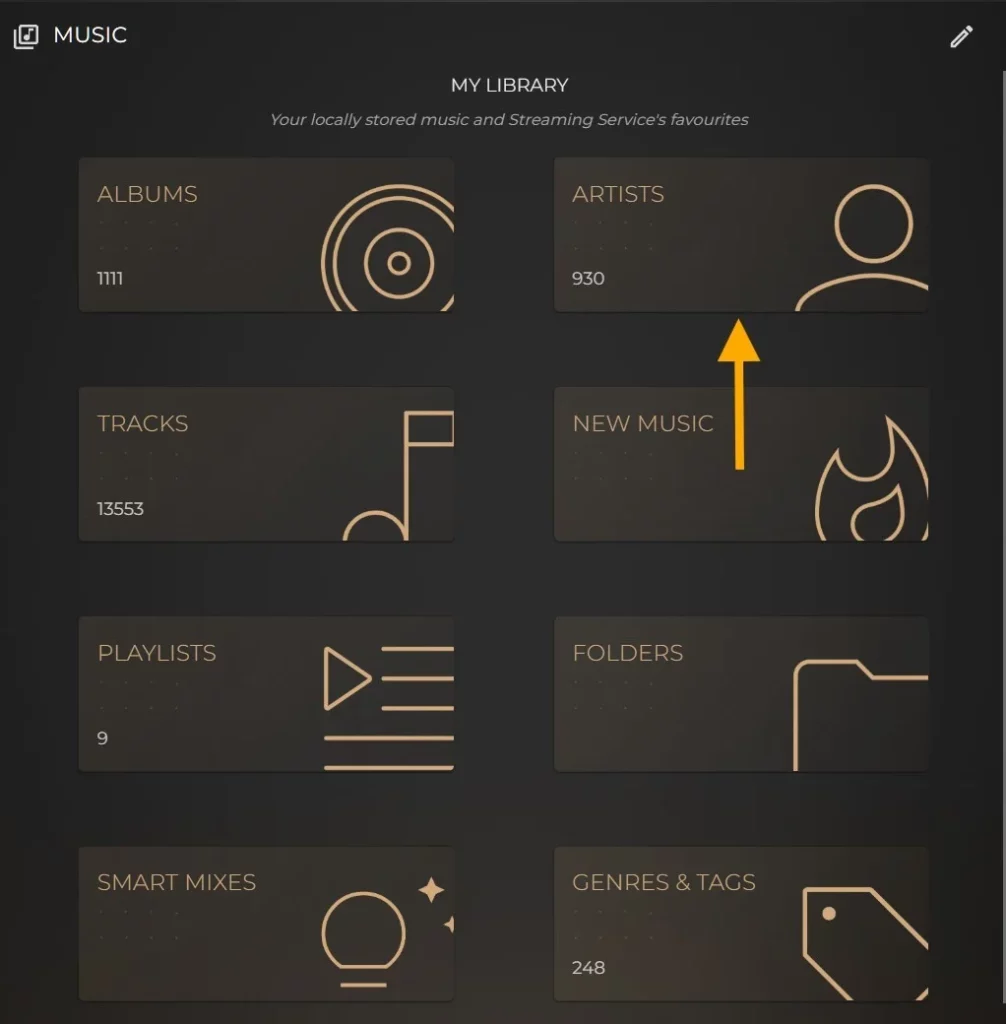
2. Select the Artist you wish to edit, then in the top right corner of the page select the three dot icon and choose Edit Artist. You will then be taken into the editing suite for that Artist.
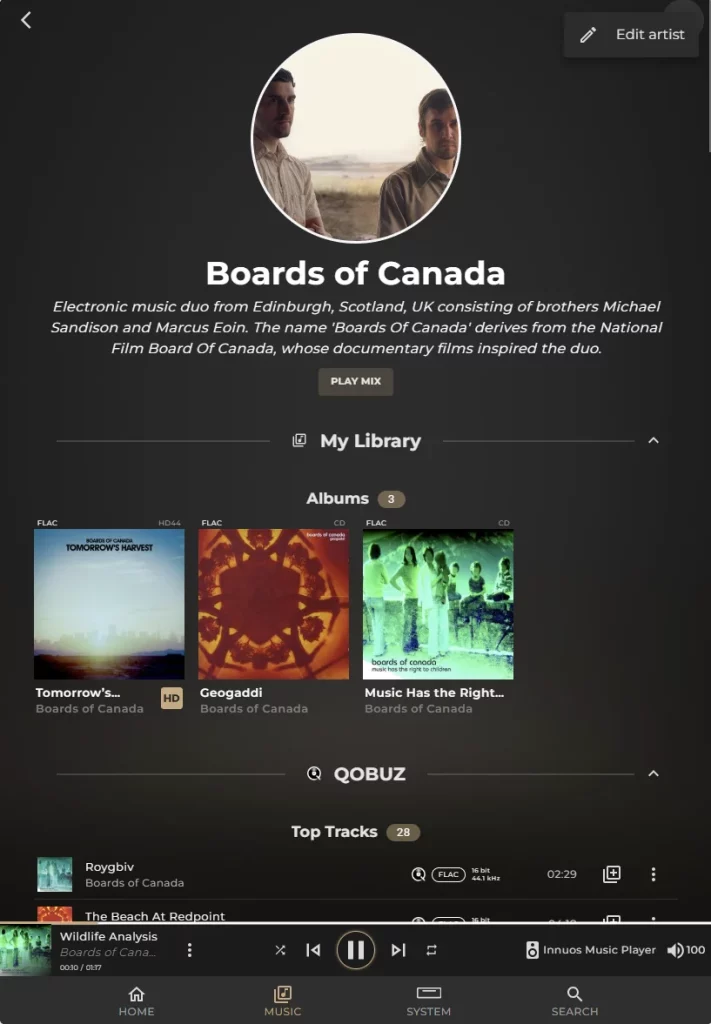
Manually Edit Artist Details
By default, Sense will automatically apply an image for an Artist from an online search if one is available, as well as a default biography. Alternatively, you can manually upload an image and amend the biography if you prefer and are not satisfied with the default options.
Manually Change Image – When in the Editing page, select Upload Image under the default Cover Image, your systems file explorer will open where you can navigate to an image you have saved ready to upload.
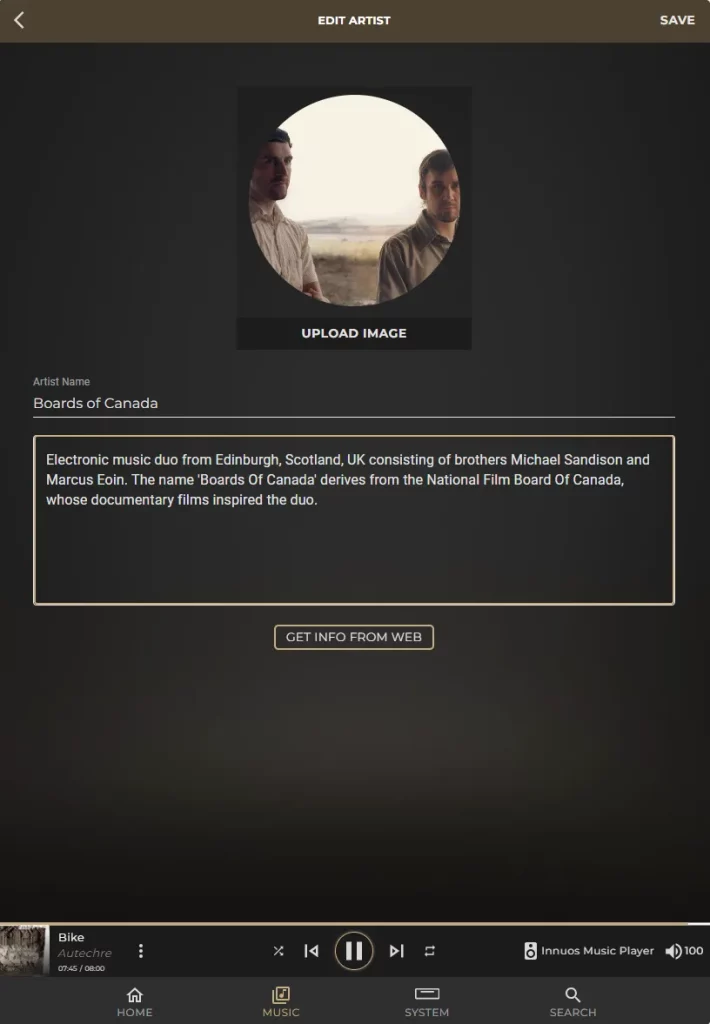
Manually Change Artist Biography – Self-explanatory, you can also amend the biography text or simply remove it entirely.
Once done, select SAVE in the top right side of the screen.
Automatic Editing of Artist Details
To further streamline the experience, you can also obtain different artist cover images online as well as alternative biographies when available.
Simply select Get Info From Web and you will be taken to a new editing page where you will be offered a selection of cover images and additional biography options.
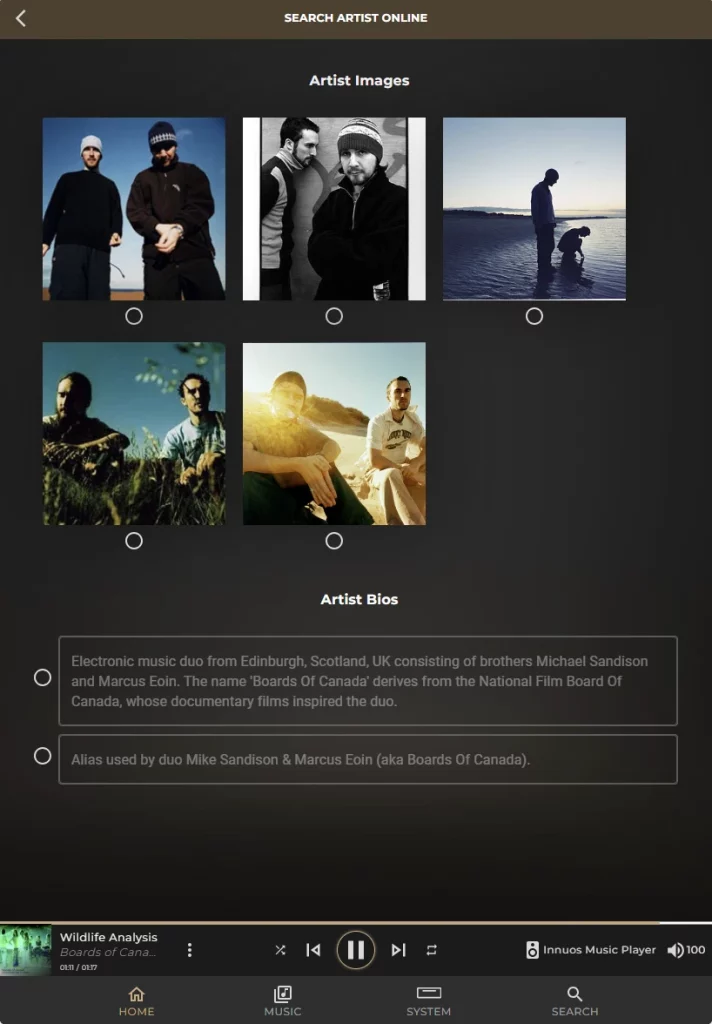
If one of the available options interests you and you wish to switch to it, simply select it and then choose Save in the top right corner of the page.